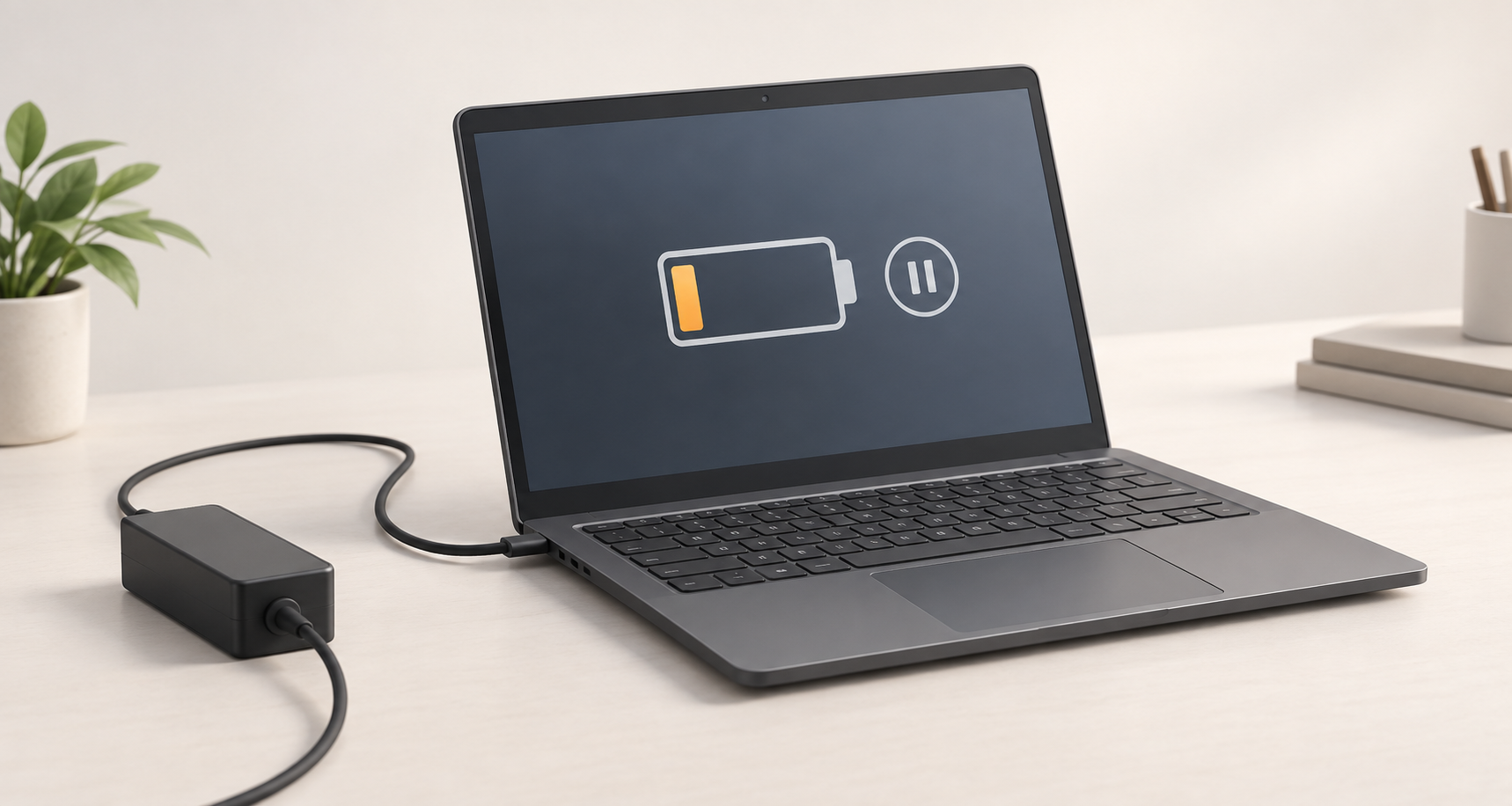
AI-generated concept illustration; not a photograph of a specific product or a real Windows status screen.
A laptop that is plugged in but not charging does not automatically need a new battery. The cause may be a charging limit, an unsuitable power supply, a connection problem or a hardware fault. Start by checking for damage, then read the exact battery message and confirm the charging setup for your model. This guide covers safe external checks for Windows laptops, not internal repairs.
Using a MacBook? Start with our MacBook charger guide for model and connector identification.
1. Stop if you notice damage or unusual heat
Do not continue charging tests if the laptop or charger shows swelling, a lifting case or trackpad, exposed wiring, liquid damage, a burning smell or unusual heat. Switch off and disconnect power if it is safe to do so, then seek professional advice.
Do not press a swollen case flat, open the battery pack or bend a damaged cable to make it work. Dell’s swollen-battery guidance identifies case separation and raised components as warning signs and advises stopping use. Contact the repair provider before transporting a suspect battery.
2. Read the battery message before changing anything
Write down the battery percentage and the exact wording shown when you select or hover over the Windows battery icon. “Not charging”, “slow charging” and a charging limit are different clues.
No power connection detected: start with the external power supply and connection checks below.
Power detected, percentage stays steady: check whether a deliberate charging limit is active.
Percentage falls while connected: record what you are doing and whether you are using a dock or hub. The power setup may need checking.
These categories organise your observations; they do not identify a failed component.
On supported devices, Windows Smart charging can deliberately stop the battery reaching 100%. Microsoft describes a heart icon and the message “Fully Smart charged”; the details depend on the manufacturer. Check your model’s instructions before changing the setting. A laptop holding at 80%, for example, is not by itself proof of a faulty battery. Microsoft explains Smart charging here.
3. Check the external power connection
If there are no warning signs, check that the charger is connected normally at the wall and laptop. Never force a connector. If practical, use a different known-working wall socket; do not test a socket that looks damaged.
Look at the charger and cable for visible damage without opening them. If a connection is loose or charging only works when the cable is held at an angle, stop manipulating it and record the symptom for assessment.
Dell’s charging troubleshooting guide covers the outlet, adapter, cable and charging port as separate checks. A power problem is not necessarily a battery problem.
4. Confirm the charger, cable and port match your laptop
A connector fitting the socket does not establish compatibility. Use the laptop’s exact model and its manufacturer’s charging requirements to check the adapter and, where separate, the cable.
For USB-C charging, check that you are using a charging-capable port and a power supply and cable that meet the laptop’s requirements. Microsoft lists an unsuitable charger, inadequate power, the wrong port and cable limitations among the causes of slow charging or battery drain while plugged in.
If you normally charge through a dock or hub, compare with a direct connection using a setup confirmed as suitable for your laptop. Change only that part of the setup and note the result. If you cannot confirm compatibility, ask for help rather than borrowing a random charger.
5. Record the result instead of trying every fix
Save your work. If the laptop is safe to use, back up important files before arranging a repair. A short record is more useful than making several changes and losing track of what happened.
Record the time, battery percentage and exact message.
Note the charger and cable used, the laptop port and whether a dock was connected.
Describe the activity: for example, idle, video call or gaming.
Record what changed after one safe check, or write “not tested”.
If power remains stable and there are no warning signs, save your work and try a normal Windows restart. Avoid a forced shutdown unless your model’s official support instructions require it.
Do not use a generic online checklist to remove an internal battery, reinstall drivers or update the BIOS. Those steps are model-specific. An unstable power supply is a reason to seek advice before attempting a firmware update.
6. Know when to arrange an assessment
Arrange an assessment if the laptop battery is still not charging after the safe checks, the adapter is repeatedly unrecognised, the connection is intermittent or the laptop switches off unexpectedly. Any damage or swelling should end home testing immediately.
Before buying a replacement part, ask what has been tested and which fault the proposed repair addresses. Request the applicable parts specification, total quote and warranty terms in writing; do not assume that a battery replacement will solve every charging problem.
For the initial enquiry, prepare this checklist:
Laptop: brand, exact model and Windows version.
Symptom: battery percentage, exact message and when the issue began.
Power setup: charger model/output label, cable and any dock or hub.
History: recent drops, liquid exposure or changes to the charging setup.
Checks: what you tried and the result of each step.
Share only relevant label details and cropped screenshots. Do not include passwords, recovery keys or unrelated personal information.
Frequently asked questions
Does “plugged in, not charging” mean the battery is dead?
No. Charging settings, the power supply, connections or a hardware fault can cause similar symptoms. The message alone cannot tell you which part, if any, needs replacement.
Why does my laptop stop charging at 80%?
Some models use a battery-care limit. Check the manufacturer’s charging settings and any Smart charging indicator. If the behaviour is new or accompanied by other problems, record those symptoms rather than assuming it is normal.
Can a phone USB-C charger charge my laptop?
Only if it meets that laptop’s charging requirements and the cable and port are suitable. The USB-C shape alone is not enough to confirm this.
Should I bring the charger with the laptop?
Ask the repair provider what they need. Include the charger, cable and dock details in your enquiry so they can advise which items to bring. Mention any suspected damage before transporting the equipment.
Need help with a laptop charging problem in Auckland?
Raytech’s laptop repair service covers battery, charging and port-related problems. View our laptop repair service and contact options with your model and checklist above to ask about an assessment. Confirm the repair options and quote before authorising work.